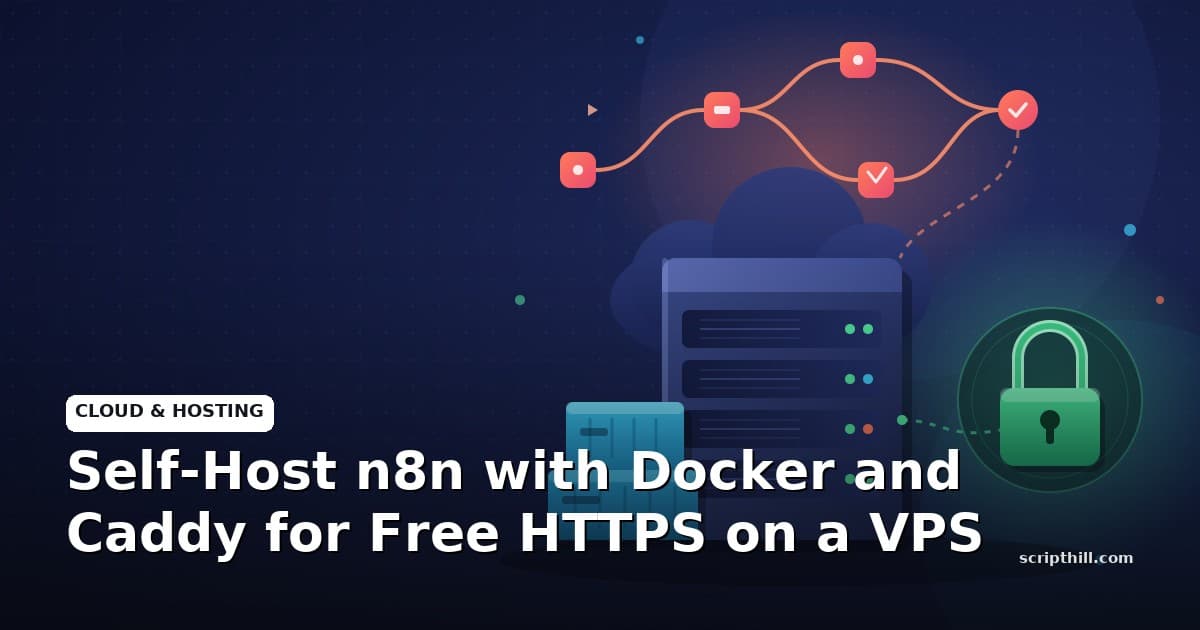
The self-host n8n Docker setup that works today is one Compose file running n8n and Caddy on a VPS with 2 GB of RAM. Point a subdomain at it and open only ports 80 and 443. Caddy fetches and renews a Let's Encrypt certificate on its own, port 5678 never touches the internet, and you get your own HTTPS automation server for roughly $5–10 a month with no per-execution billing.
Many guides that still rank were written for n8n 1.x. They set basic-auth variables that n8n removed in 1.0, or they pull an unpinned :latest image. As of November 2026, n8n is on the 2.x line, and keeping an instance alive comes down to a pinned image tag, WEBHOOK_URL set to your domain, and an owner account claimed right after first start.
Above all, store your N8N_ENCRYPTION_KEY off the server. Lose it, and every saved credential becomes unreadable.
Pick a server and a database
RAM decides how far a small server goes. CPU and disk matter much less. With task runners on by default in 2.x, 1 GB is tight, and adding Postgres pushes it over the edge, while 2 GB leaves real headroom. AI-agent workflows and large binary files use the most memory, so size for them if you run them. On any box under 2 GB, add a swap file so a memory spike slows n8n down instead of getting the process killed.
Entry-level plans are cheap. One 2026 tutorial ran on a Hetzner CX22 at €4.51 a month in April 2026, but plan names and prices change, so check current ones before you buy. Pick a region close to the APIs your workflows call, and turn on the snapshot or backup add-on.
SQLite needs zero setup and handles one person running a handful of workflows. Postgres earns its extra container when you have many executions or large payloads, or need stronger durability, and queue mode requires it if you scale later. Decide now, because migrating from SQLite to Postgres later is painful. My rule: if it's just you and a few workflows, use SQLite. If a team or a client depends on it, start with Postgres. Either way, keep execution-data pruning on so the database doesn't grow without limit.
Prepare the server and DNS
Caddy gets a certificate on the first try only if the domain already points at your server and port 80 answers. Set up DNS first, since propagation can take a while.
-
Create an A record for a subdomain such as
n8n.example.comthat points at your VPS's public IPv4 address. Add an AAAA record only if the server's IPv6 is actually configured. A stale AAAA record that points somewhere else is a common reason Let's Encrypt validation fails. -
Log in with an SSH key, not a password, on Ubuntu or Debian. Make sure
ssh you@your-ipworks without a password prompt before you disable password auth. While you're there, check that your OpenSSH version is patched. -
Open only 22, 80 and 443 in UFW. Allow SSH before enabling the firewall so you don't lock yourself out:
sudo ufw allow 22/tcp && sudo ufw allow 80/tcp && sudo ufw allow 443/tcp && sudo ufw enableThen runsudo ufw statusand confirm those three ports are the only ones listed. -
Install Docker and the Compose plugin from Docker's official apt repo, or use the convenience script that the Sliplane guide uses:
curl -fsSL https://get.docker.com | sh. Runningdocker compose versionshould print a version number. -
Check that DNS resolves before you go further.
dig +short n8n.example.comshould return your VPS IP.dig +short AAAA n8n.example.comshould return nothing, or the server's own IPv6 address.
Write the Compose file and Caddyfile
Set the encryption key yourself before n8n's first start. Otherwise n8n generates one inside its data volume, where it's easy to lose. Create the working directory with sudo mkdir -p /opt/n8n && cd /opt/n8n, generate a key with openssl rand -hex 32, and copy the output into your password manager right away.
Put the key, your hostname and your timezone in /opt/n8n/.env. Schedule triggers fire at the wrong hour unless TZ is set alongside GENERIC_TIMEZONE:
N8N_HOST=n8n.example.comN8N_ENCRYPTION_KEY=paste-your-64-character-hex-key-hereGENERIC_TIMEZONE=Europe/BerlinTZ=Europe/BerlinThe docker-compose.yml below uses the default SQLite database and pins a 2.x tag. 2.43.7 comes from a recent tutorial that warns against :latest. Check n8n's releases for the current stable tag and use that instead.
services:  n8n:    image: n8nio/n8n:2.43.7    restart: unless-stopped    environment:      - N8N_HOST=${N8N_HOST}      - N8N_PROTOCOL=https      - WEBHOOK_URL=https://${N8N_HOST}/      - N8N_PROXY_HOPS=1      - N8N_ENCRYPTION_KEY=${N8N_ENCRYPTION_KEY}      - GENERIC_TIMEZONE=${GENERIC_TIMEZONE}      - TZ=${TZ}    volumes:      - n8n_data:/home/node/.n8n
  caddy:    image: caddy:2-alpine    restart: unless-stopped    ports:      - "80:80"      - "443:443"    environment:      - N8N_HOST=${N8N_HOST}    volumes:      - ./Caddyfile:/etc/caddy/Caddyfile:ro      - caddy_data:/data      - caddy_config:/config    depends_on:      - n8n
volumes:  n8n_data:  caddy_data:  caddy_config:
WEBHOOK_URL stops n8n from handing out http://localhost:5678 webhook and OAuth URLs. N8N_PROXY_HOPS=1 tells n8n to trust the X-Forwarded headers from the one proxy in front of it, Caddy. The n8n service has no ports: entry on purpose: Caddy reaches n8n over the internal Compose network, and publishing the port would bypass your firewall (more on that under "Lock it down").
The caddy service gets its own environment: block because .env values don't reach containers unless you pass them in. Leave it out and Caddy never learns your domain.
The caddy_data volume holds your certificates, so losing it means Caddy has to issue them again. All three are named volumes rather than bind mounts. n8n runs as the node user (UID 1000), and bind-mounting a root-owned ./data folder produces permission errors on startup.
Save this as /opt/n8n/Caddyfile:
{$N8N_HOST} { encode zstd gzip reverse_proxy n8n:5678}Caddy forwards the X-Forwarded headers and the WebSocket connection the editor uses for live updates without extra directives. With Nginx you'd configure both by hand.
If you chose Postgres, add a postgres:16 service with a healthcheck and its own named volume. Give n8n a depends_on that waits for that healthcheck, and add DB_TYPE=postgresdb plus the DB_POSTGRESDB_* connection variables to n8n's environment.
Start n8n and claim the owner account
Do all four steps in one sitting. Don't start the stack and walk away.
- Start the stack from
/opt/n8nwithdocker compose up -d.docker compose psshould list both n8n and Caddy as running. - Follow n8n's logs with
docker compose logs -f n8n. On first start, n8n runs its database migrations before it listens, so a short wait with no output is normal. It's ready when the log says the editor is accessible. Press Ctrl+C to stop following the logs. - Check the certificate with
docker compose logs caddy. You want a "certificate obtained successfully" line for your domain. If you see errors instead, don't keep restarting the stack. Go to the troubleshooting section below. - Open
https://your-domainand create the owner account right away. Until you do, the setup page is public, and whoever fills it in first owns the instance and every credential you later add. Older tutorials tell you to setN8N_BASIC_AUTH_*variables. Ignore that advice: n8n removed those variables in 1.0, and the owner account replaced them. To confirm, sign out. The page should now ask for a login, not show the setup screen.
Fix webhook URLs and certificate errors
If your webhook nodes show http://localhost:5678/... URLs, or Google and other OAuth providers reject the redirect, n8n doesn't know its public address. Check that WEBHOOK_URL, N8N_HOST and N8N_PROTOCOL=https are all set on the n8n service, then run docker compose up -d so Compose recreates the container. docker compose restart won't fix it, because it restarts the old container with its old environment.
When the certificate won't issue, docker compose logs caddy usually names the cause:
- The A record hasn't propagated yet, so Let's Encrypt still sees an old IP or nothing at all.
- A stale AAAA record points somewhere else. Let's Encrypt tries IPv6 when it exists, so the challenge lands on the wrong machine.
- Port 80 is closed, either in UFW or in your provider's cloud firewall, which sits in front of the server and is easy to forget.
- Cloudflare's orange-cloud proxy is on. Set the record to DNS only (gray cloud) so Let's Encrypt reaches Caddy directly.
- Caddy never got your domain. A
.envfile only fills in variables inside the Compose file, so if the Caddyfile reads{$N8N_HOST}, the caddy service needsN8N_HOSTin its ownenvironment:block. Without it, Caddy fails silently.
Read the logs before you restart again. Every failed attempt counts toward Let's Encrypt's rate limits, and hitting them blocks new certificates for your domain for a while.
Lock it down
UFW can show only 22, 80 and 443 allowed and still leave n8n wide open. On standard installs, Docker writes its own iptables rules for published ports, and that traffic reaches the container before UFW's rules ever see it. One stray "5678:5678" line puts your editor on the public internet.
If you want to reach n8n without going through Caddy, publish it as 127.0.0.1:5678:5678 instead. Then open a tunnel from your laptop with ssh -L 5678:127.0.0.1:5678 you@your-server and browse to http://localhost:5678.
Keep the firewall at those three ports and set PasswordAuthentication no in sshd_config so only keys get in. The sshole vulnerability is a good reminder to keep OpenSSH patched too.
The owner account is your only login, and the free self-hosted edition has no SSO to fall back on, so give it a long, unique password.
n8n 2.x defaults that break old workflows
Most Code and Execute Command failures after a 2.x upgrade, or after following a 1.x tutorial, come from defaults n8n changed on purpose in 2.0:
- Task runners are on by default, so Code node runs happen in an isolated environment instead of the main n8n process. Code written for 1.x may behave differently there.
- Code nodes can't read environment variables by default, so a
$env.API_KEYreference that worked in 1.x now errors instead of returning your value. - The Execute Command and Local File Trigger nodes are disabled by default. They're missing from the node panel, and imported workflows that use them won't run.
- Python in the Code node needs task runners in external mode, which uses the separate
n8nio/runnersimage. The Pyodide-based Python node was removed, so the stockn8nio/n8nimage alone can't run Python. - The in-memory binary data mode is gone, and file access is restricted to specific directories. Nodes that read or write files elsewhere on disk now throw errors.
- OAuth callback auth is enforced, and the Git node rejects bare repositories by default.
Undoing any of these takes an explicit opt-in. Copy the exact variable names from n8n's v2.0 breaking changes page rather than guessing.
Back up and upgrade without losing credentials
Back up the raw data every night. On SQLite, the database lives in the n8n volume, so a nightly cron copy of that volume covers everything. On Postgres, run pg_dump. The CLI exports add a second layer you can import into a fresh instance:
# Portable exports, written inside the n8n volume, then copied to the hostdocker compose exec n8n n8n export:workflow --all --output=/home/node/.n8n/backups/workflows.jsondocker compose exec n8n n8n export:credentials --all --output=/home/node/.n8n/backups/credentials.jsondocker compose cp n8n:/home/node/.n8n/backups ./backups
# Postgres only (use your own user and database names)docker compose exec -T postgres pg_dump -U n8n n8n > ./backups/n8n-$(date +%F).sql
# Upgrade, after changing the pinned tag in docker-compose.ymldocker compose pull && docker compose up -ddocker compose logs -f n8n
A backup that lives only on the VPS disappears with the VPS. Sync the backups folder to S3-compatible storage with a tool like rclone, and take a provider snapshot right before every upgrade. That way a bad release costs you a rollback, not a rebuild.
Before upgrading, read the n8n 2.x release notes for every version between your current tag and the new one. Then change the pinned tag and watch the logs until migrations finish and the editor loads. Switching to :latest saves you that edit, but n8n then upgrades whenever the image is pulled, and nobody reads the release notes first.
Frequently Asked Questions
Is self-hosted n8n free for business use?
Mostly, yes. n8n uses the Sustainable Use License, which lets you run it for your own company's internal automations at no cost. It isn't an OSI open-source license, though, so you can't resell n8n itself as a hosted service or sell access to it. A few features, such as SSO, require a paid enterprise license. If n8n will be part of something you charge customers for, read n8n's license page before you build on it.
Can I use Traefik or Nginx instead of Caddy with n8n?
Yes. n8n's own Docker example uses Traefik, which you configure through labels on the containers rather than a separate config file. Nginx with certbot works too, but you set the X-Forwarded headers, the WebSocket upgrade headers and certificate renewal yourself, all things Caddy handles out of the box. With any proxy, keep WEBHOOK_URL and N8N_PROXY_HOPS set. If Nginx runs on the host rather than in Compose, bind n8n to 127.0.0.1:5678.
Sources
- The Ultimate n8n Self-Hosting Guide · sliplane.io
- n8n Docker Compose Setup, Done the Safe Way - DEV Community · dev.to
- Self-Host n8n on a VPS: Docker Compose Tutorial 2026 · automationatlas.io
- v2.0 Breaking changes · docs.n8n.io
Want more from ScriptHill in Google? Add us as a preferred source